

Sleep In Tomorrow
Silence alarms until the time you choose. For the morning you want to sleep in.
About
“Tomorrow is a holiday, but my daily alarm is still set — I want it off, just for tonight.” This app is for that specific morning. It silences alarms until the time you choose, then automatically restores the volume so your normal alarms work again the next day.
Just for tonight
Designed for one-off use. Your daily alarm settings stay exactly as they are — there’s nothing to undo in the morning.
Auto-restore
At your wake-up time, silent mode lifts and alarm volume returns automatically. Tomorrow’s alarm rings as usual.
Schedule a bedtime
Want to fall asleep with meditation audio or music? Set a bedtime and the app switches to silent on its own — even if you fall asleep before then.
Home screen widgets
1×1 and 1×2 widgets let you toggle the app from your home screen. Widget colors follow your selected theme.
5 themes
Night Indigo, Sakura, Ocean Deep, Forest Mint, Lavender Dream — pick the look that fits your night.
Japanese & English
The app follows your system language. You can also switch the in-app language from Settings.
No tracking
No data collection. No analytics. No internet calls. Everything stays on your device.
How to install
- Tap Download APK above to download
AshitaYukkuri.apkto your device. - Open the downloaded APK and tap Install.
- If Android warns about “unknown sources”, allow installation from your browser when prompted.
- Launch the app and continue with Initial setup below.
Initial setup (3 steps)
On first launch you’ll grant three permissions. The whole flow takes about a minute.
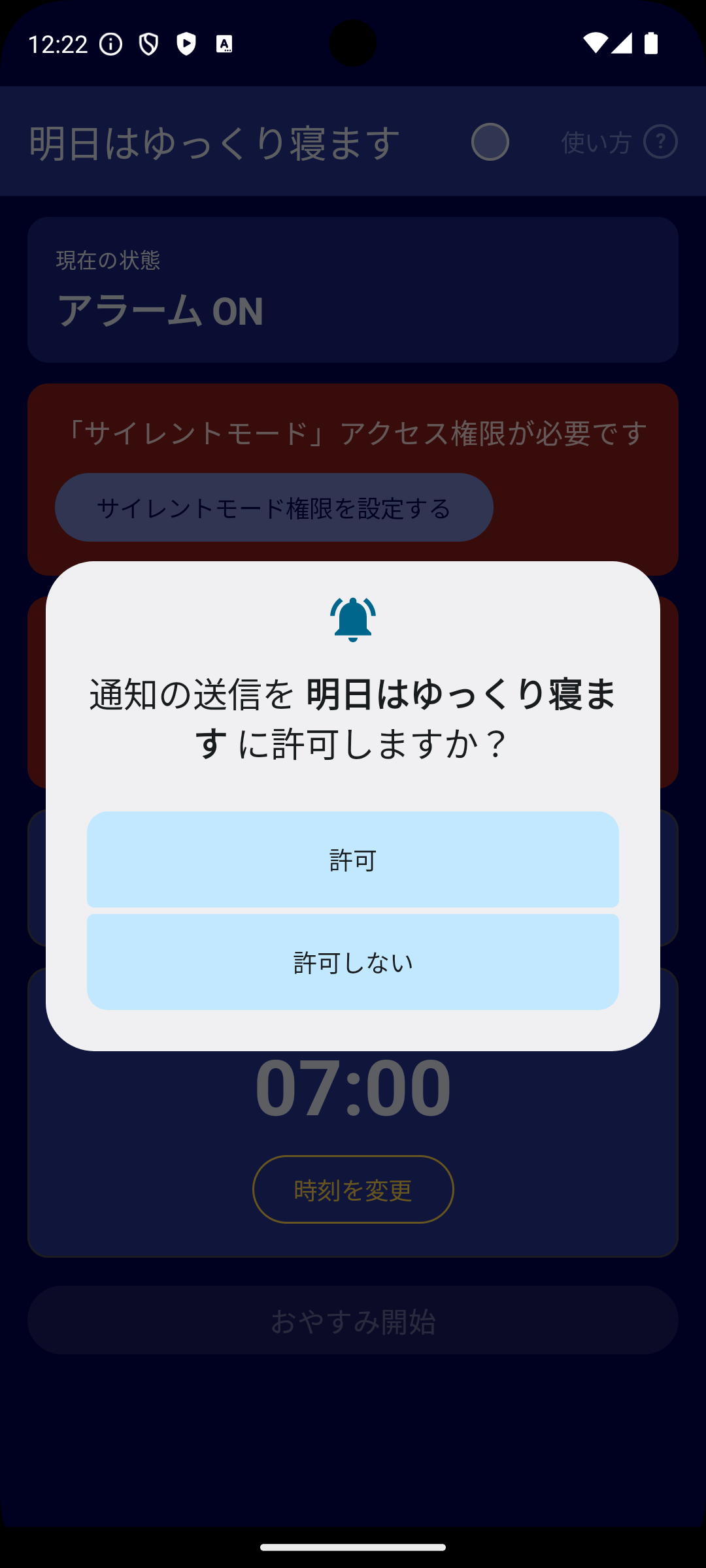
1Allow notifications
Right after launch you’re asked to allow notifications (Android 13+). The app uses notifications only to let you know when your alarms are restored. Behind the dialog you can see the main screen with two red cards: “Do Not Disturb” and “Exact alarms”.
- Tap Allow.
- Then tap the red card labeled “Grant Do Not Disturb access”.
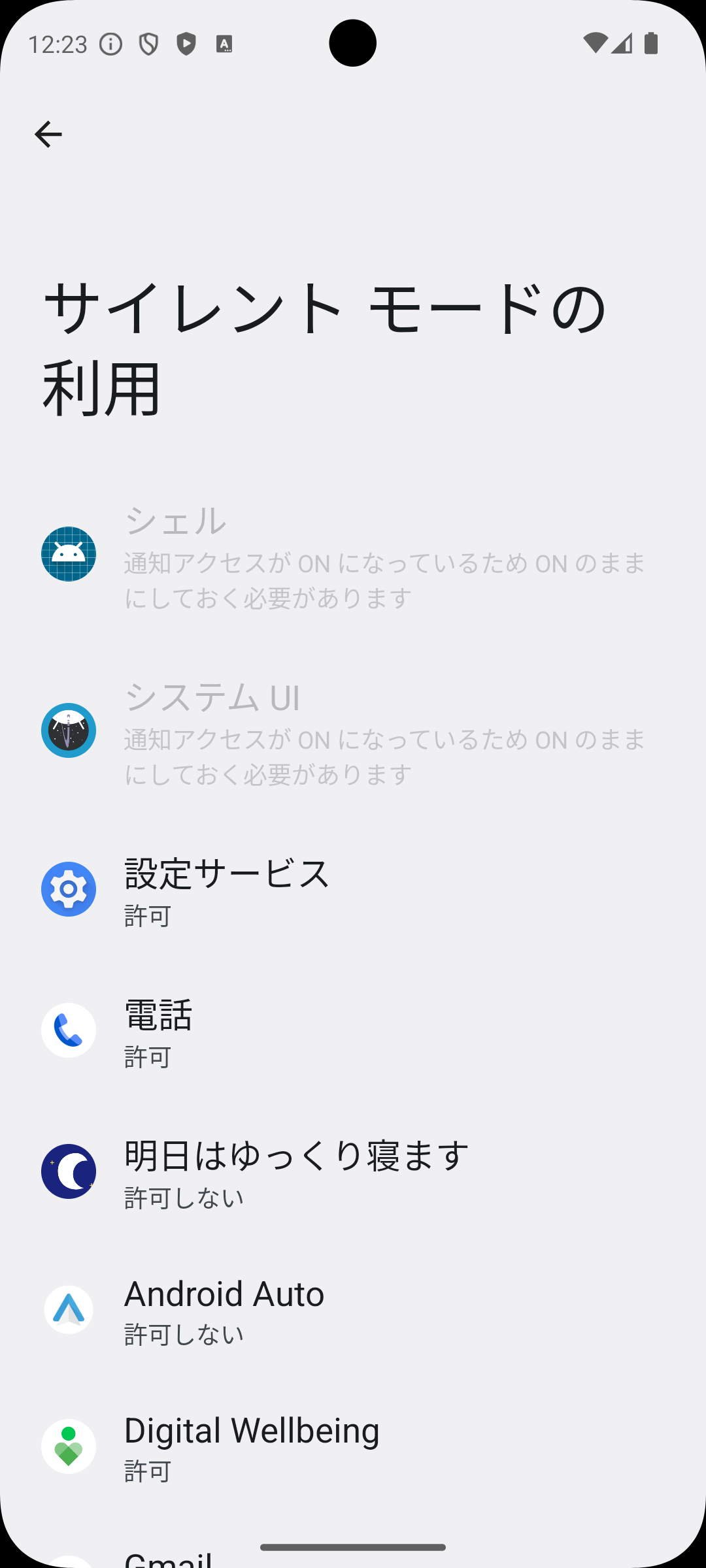
2aAllow Do Not Disturb access
Android opens the “Do Not Disturb access” screen. Find Sleep In Tomorrow (明日はゆっくり寝ます) in the app list.
- Scroll the list and tap the app.
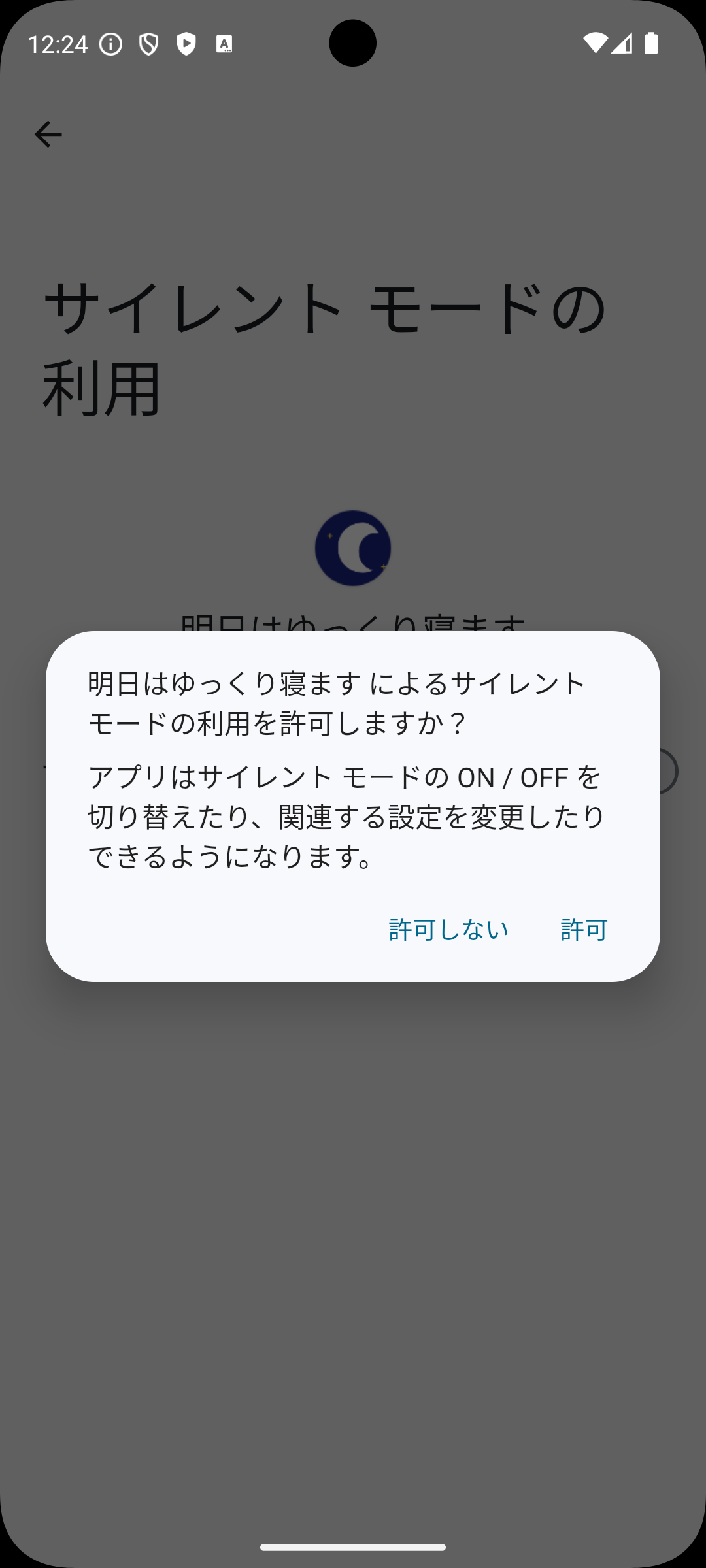
2bConfirm in the dialog
Toggle the switch on. Android asks “Allow Sleep In Tomorrow to use Do Not Disturb?”
- Tap Allow.
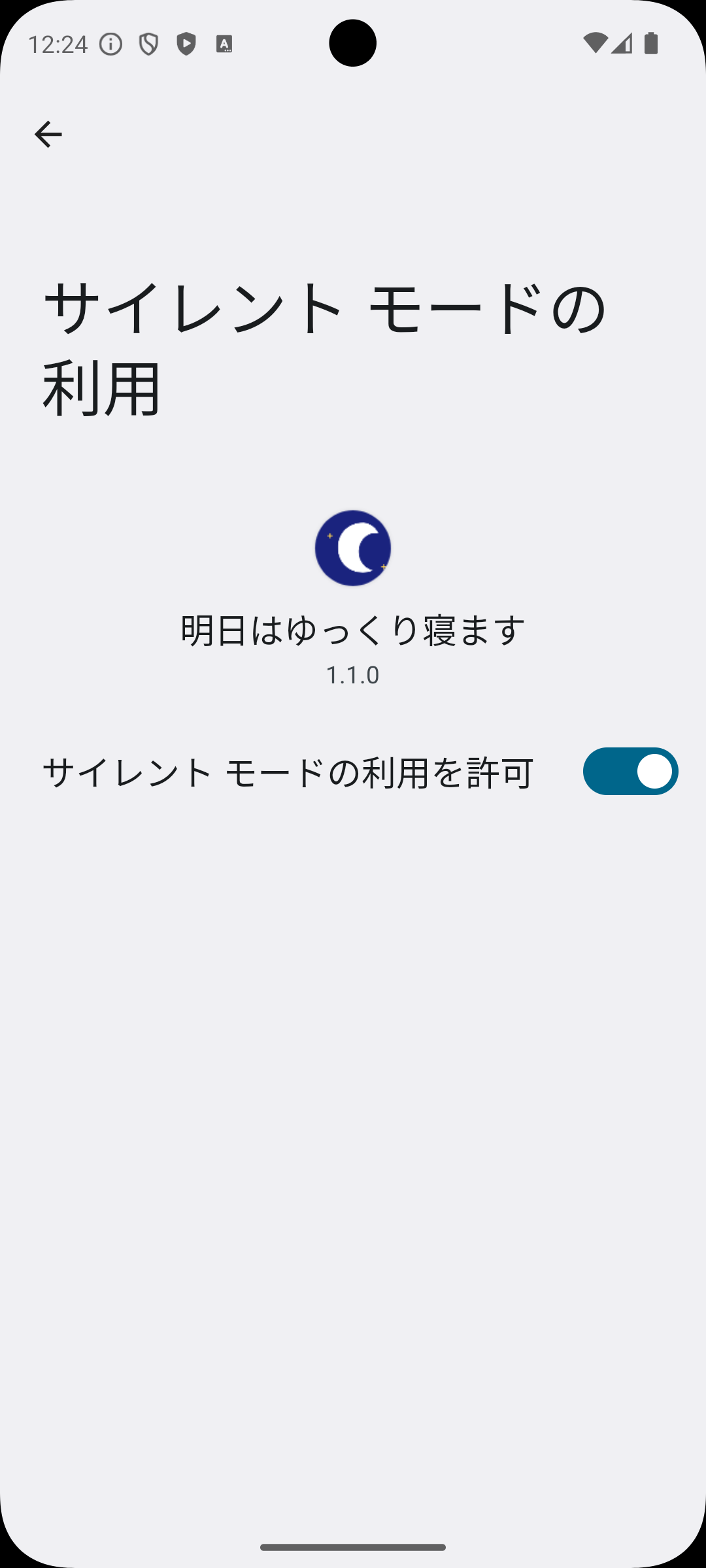
2cConfirm the toggle is on
The “Allow Do Not Disturb” switch should now be blue (on). Tap ← (back) to return to the app.
3aOpen exact alarms screen
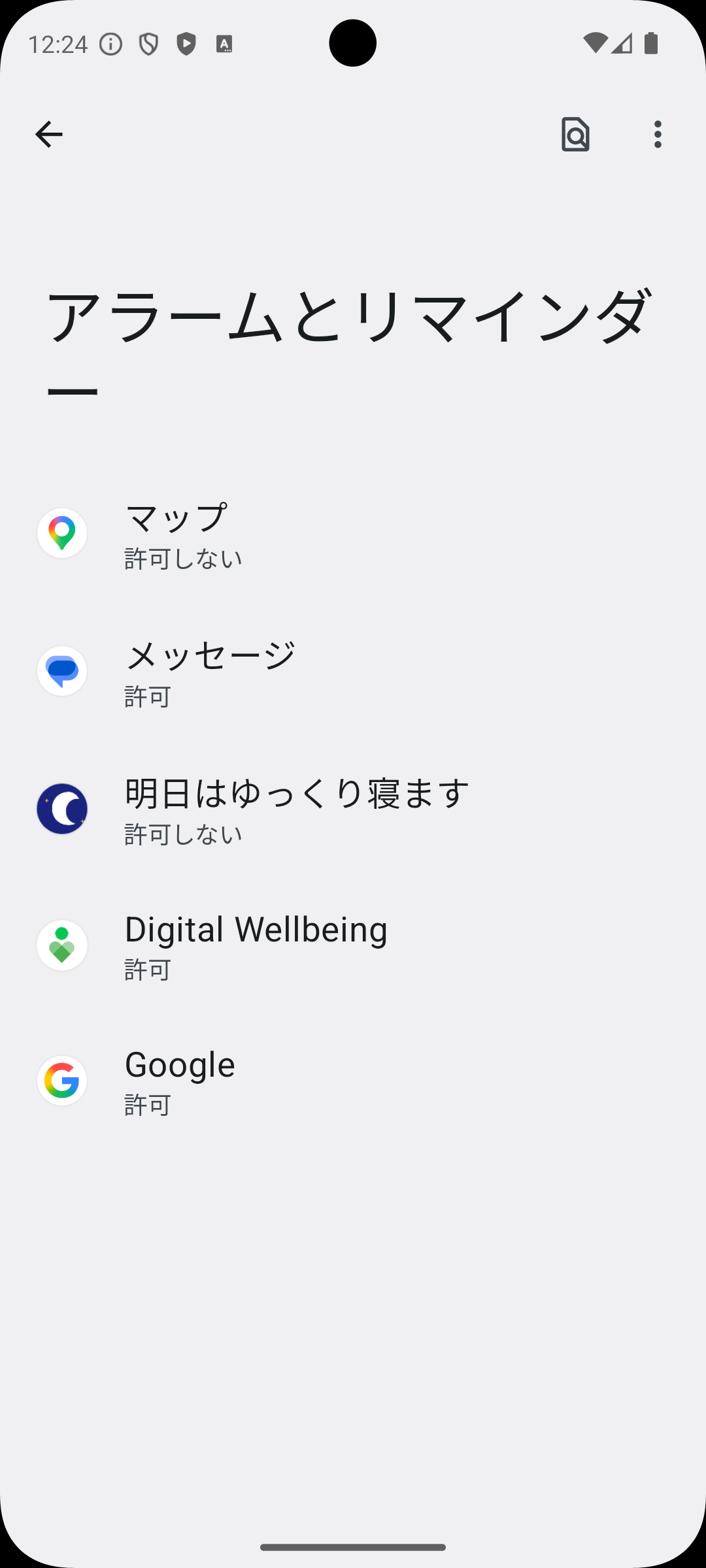
Back in the app, tap the other red card “Grant alarm permission”. Android’s “Alarms & reminders” screen opens.
- Tap Sleep In Tomorrow in the list.
3bAllow alarms & reminders
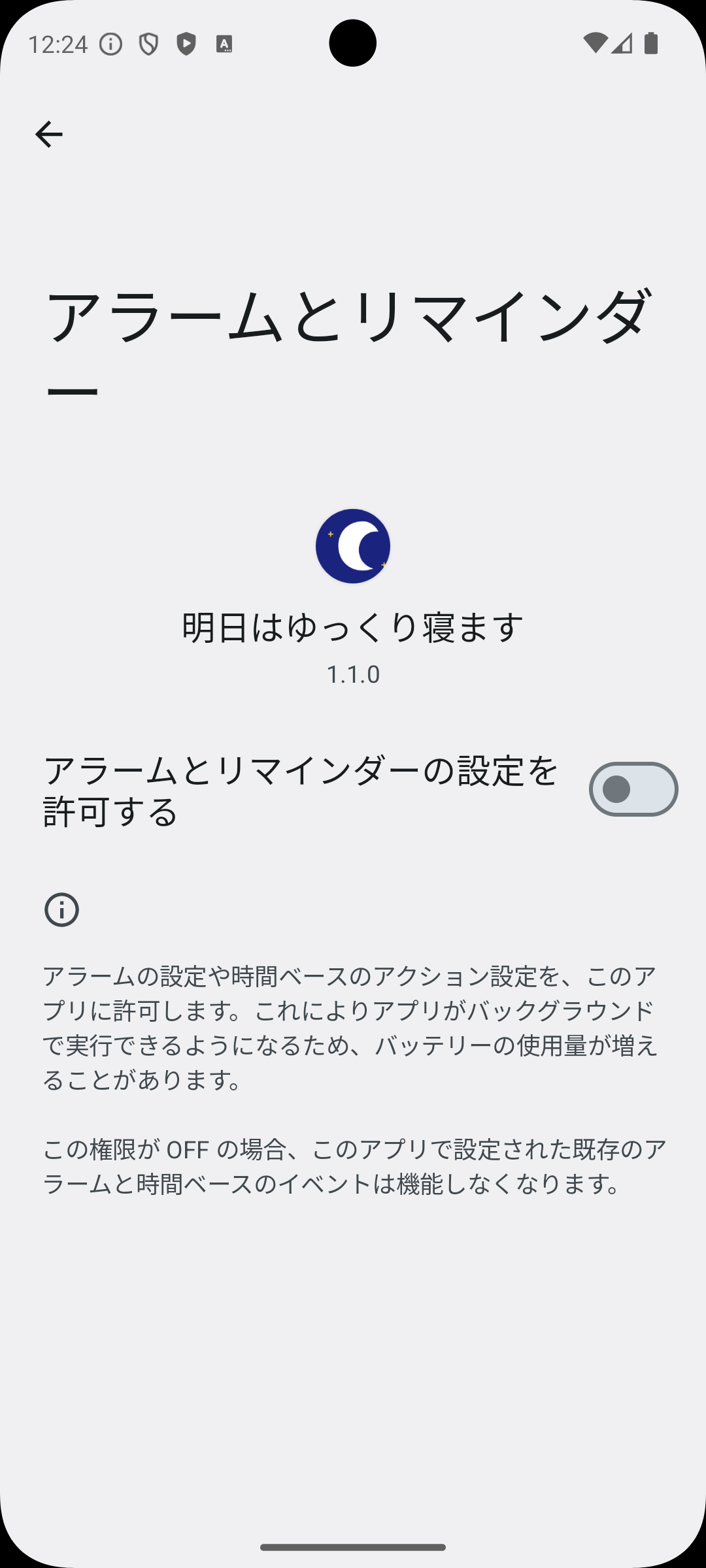
“Allow setting alarms and reminders” is off by default.
- Tap the switch to turn it on.
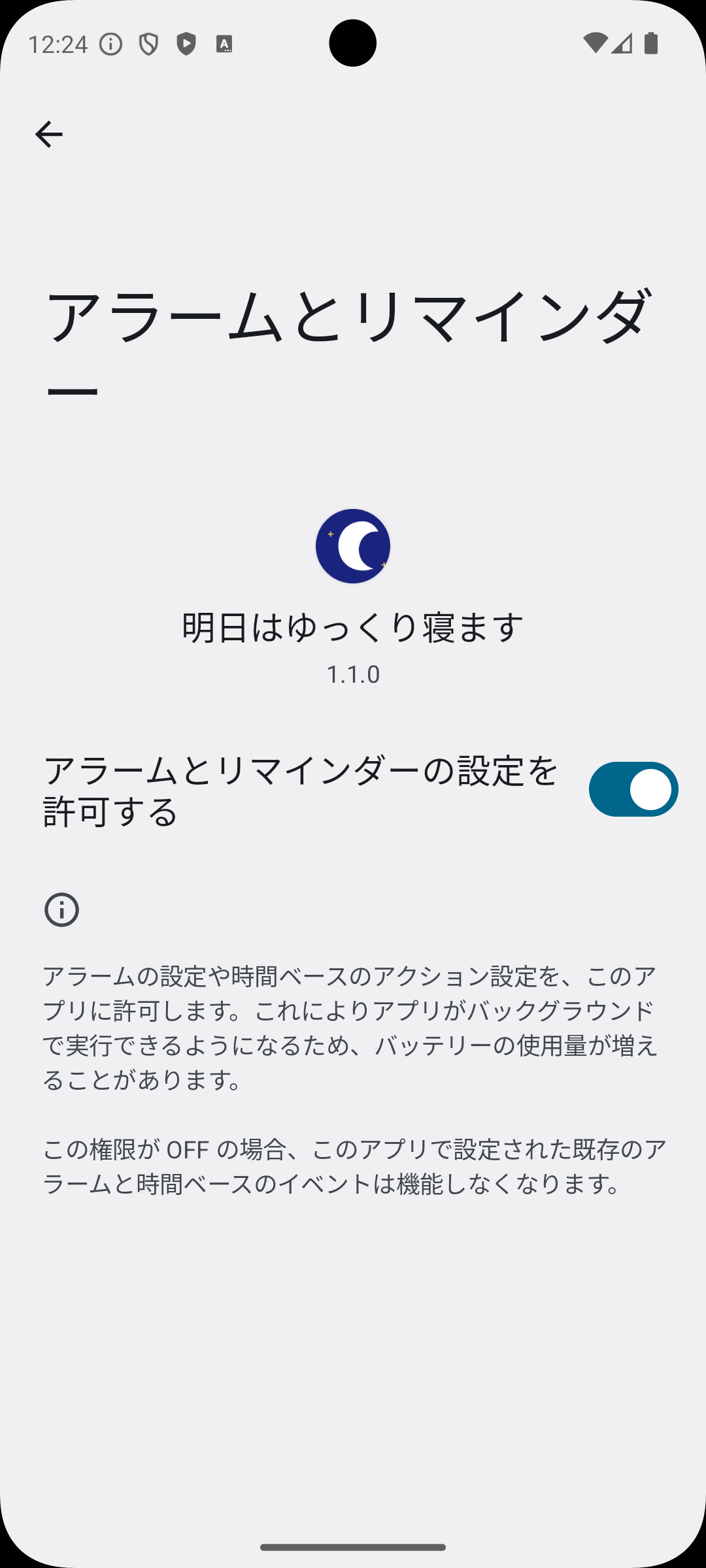
3cConfirm the toggle is on
The switch should now be blue. Tap ← back to the app. The app can now precisely restore alarms at your chosen time.
✓Setup complete
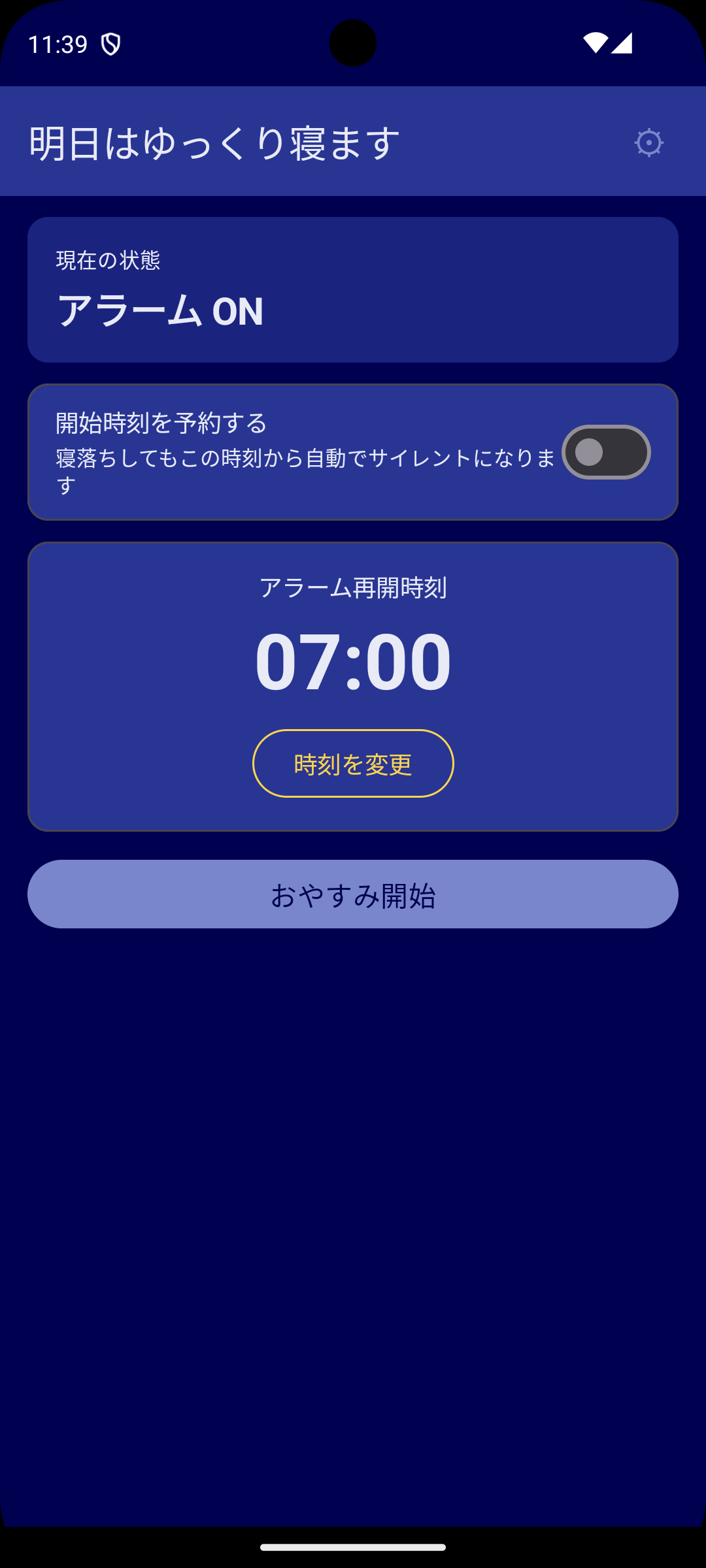
Both red cards disappear and the Start now button becomes active. You’re ready.
- Tap Change to set your wake-up time.
- Tap Start now to silence alarms until that time.
How to use
Tonight: Start the silence
Before bed, open the app, set your wake-up time, and tap Start now. Silent mode kicks in immediately.
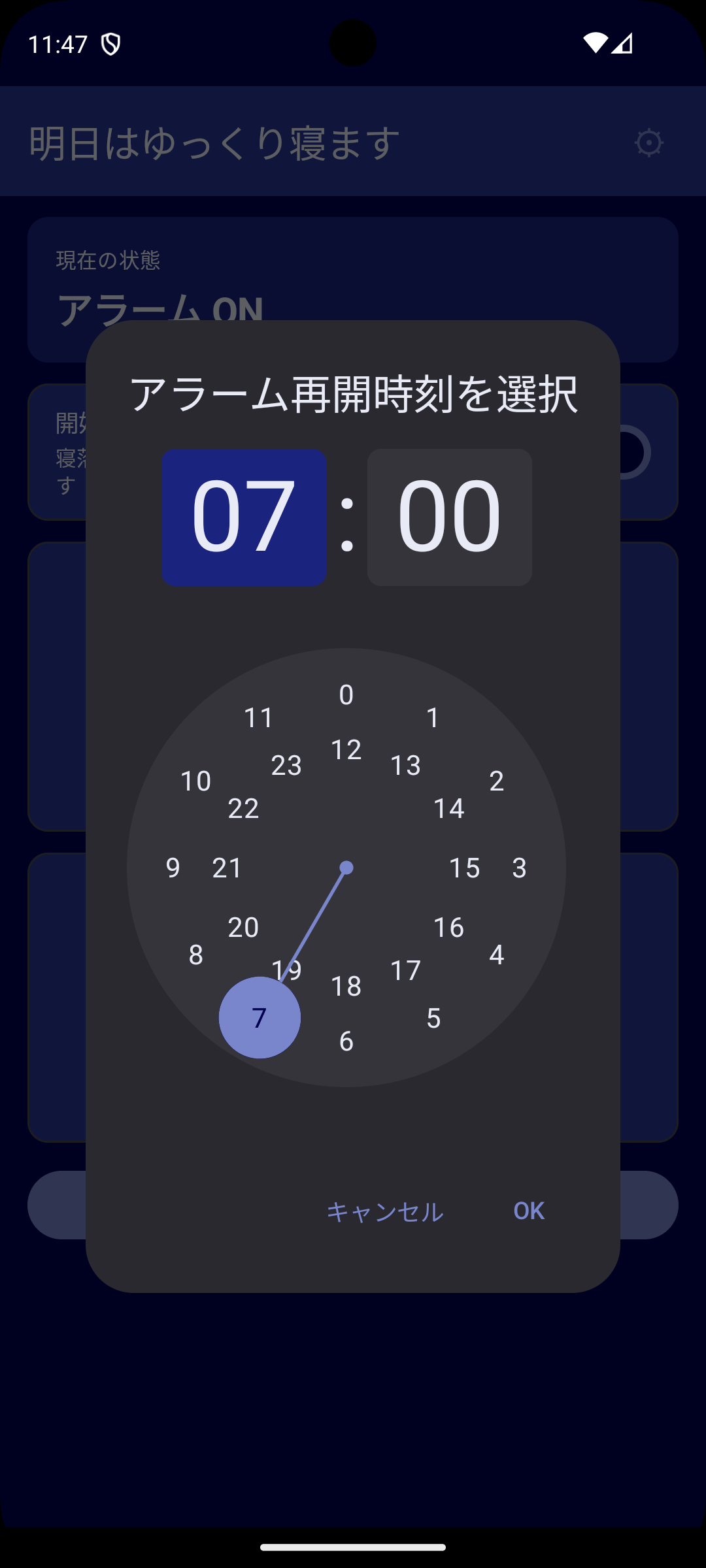
⏰Setting the wake-up time
Tap Change to open a 24-hour time picker. Pick the hour and minute when you want alarms to start sounding again, then OK. The time applies to this one night only.
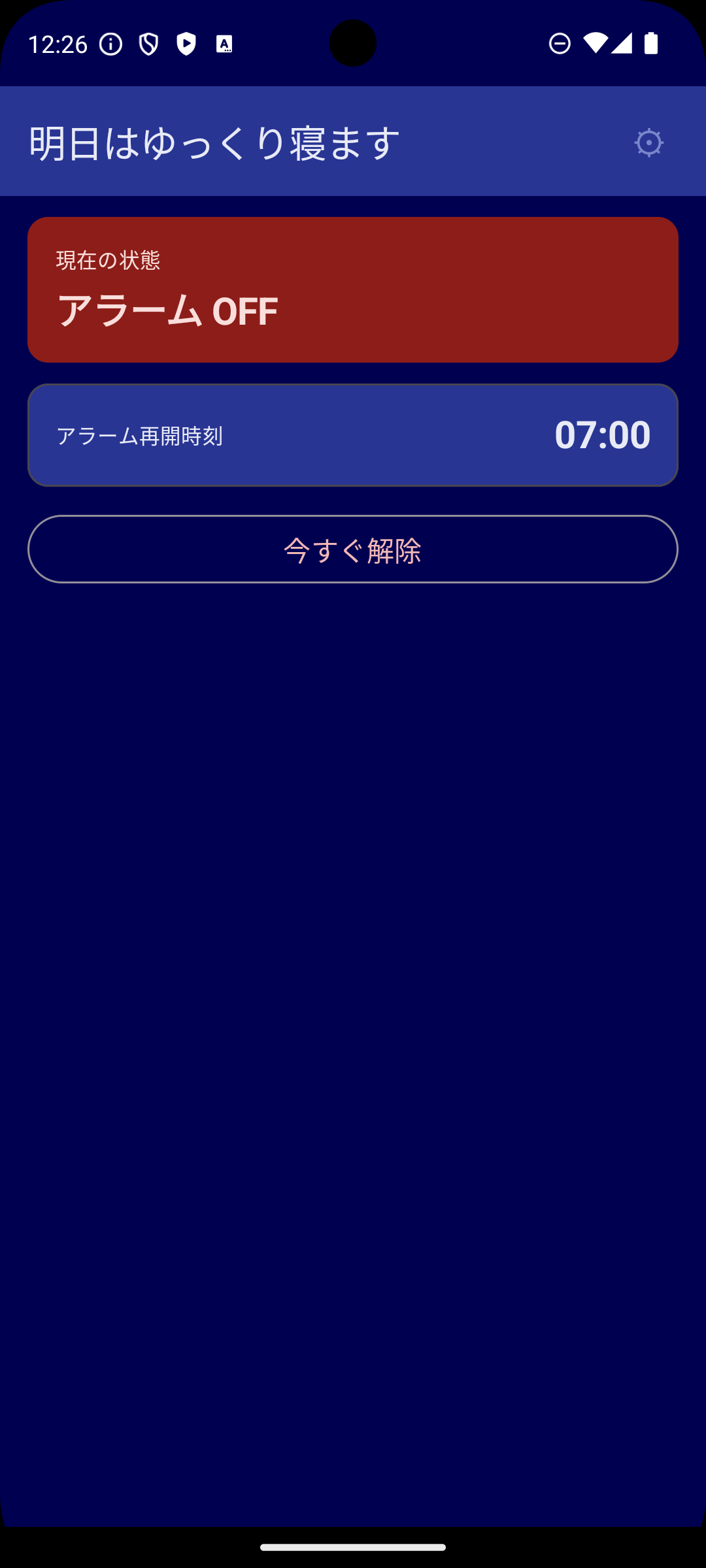
●While silenced
After tapping Start now, the status card turns red and reads Alarm OFF. The system Do Not Disturb icon appears in the status bar. Your phone stays quiet until your wake-up time.
- Alarms come back automatically at the wake-up time.
- Changed your mind? Tap Wake up now to restore immediately.
Tomorrow morning: Auto-restore
At your wake-up time, silent mode lifts and the alarm volume returns to whatever it was before. You’ll see a notification confirming the restore, and your usual alarm rings as normal.
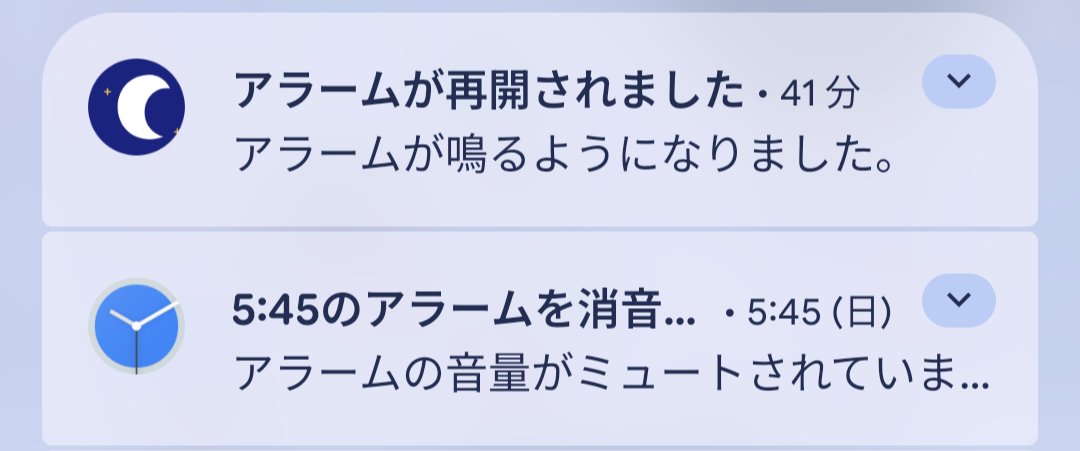
🔔“Alarms are back on” notification
When the wake-up time arrives, you’ll see Alarms are back on / Your alarm sounds will play normally now. in the notification shade. That’s confirmation that silent mode lifted and the alarm volume was restored.
The other notification you may see below (“Alarm muted / Alarm volume is muted”) is from the system Clock app, detecting that this app had muted the alarm stream. It’s actually proof that the mute was effective until the wake-up time. (It may not show on every device.)
Falling asleep to sound (Schedule a bedtime)
Like to fall asleep to meditation audio or music? You probably know the problem: you doze off before tapping Start now, and the alarm volume stays high all night. Schedule a bedtime solves it.
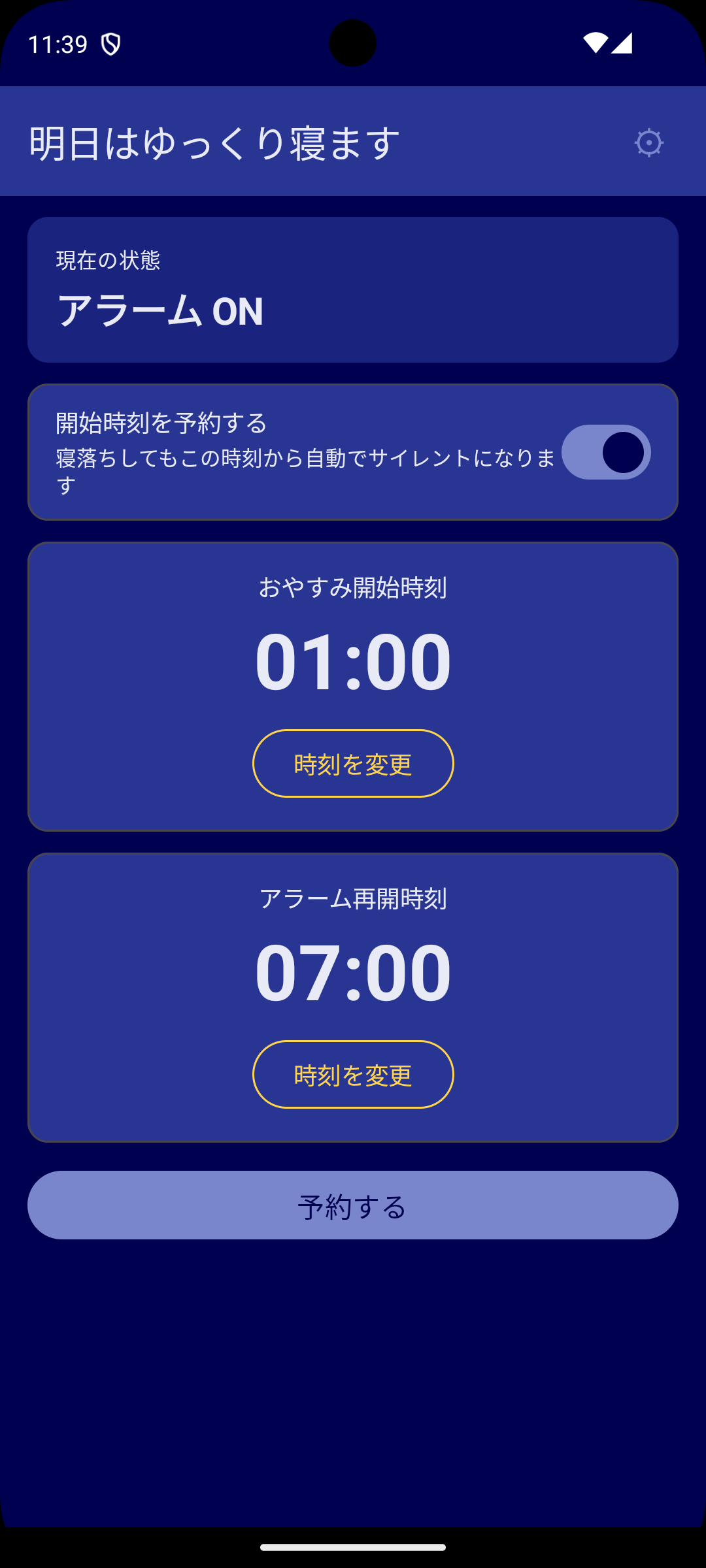
📅Set up the schedule
- Turn on the Schedule a bedtime switch on the main screen.
- A new Bedtime card appears. Pick when silence should begin (e.g., 23:30).
- Tap Schedule.
While scheduled, alarm volume and normal mode stay exactly as they are — your music or meditation plays as usual.
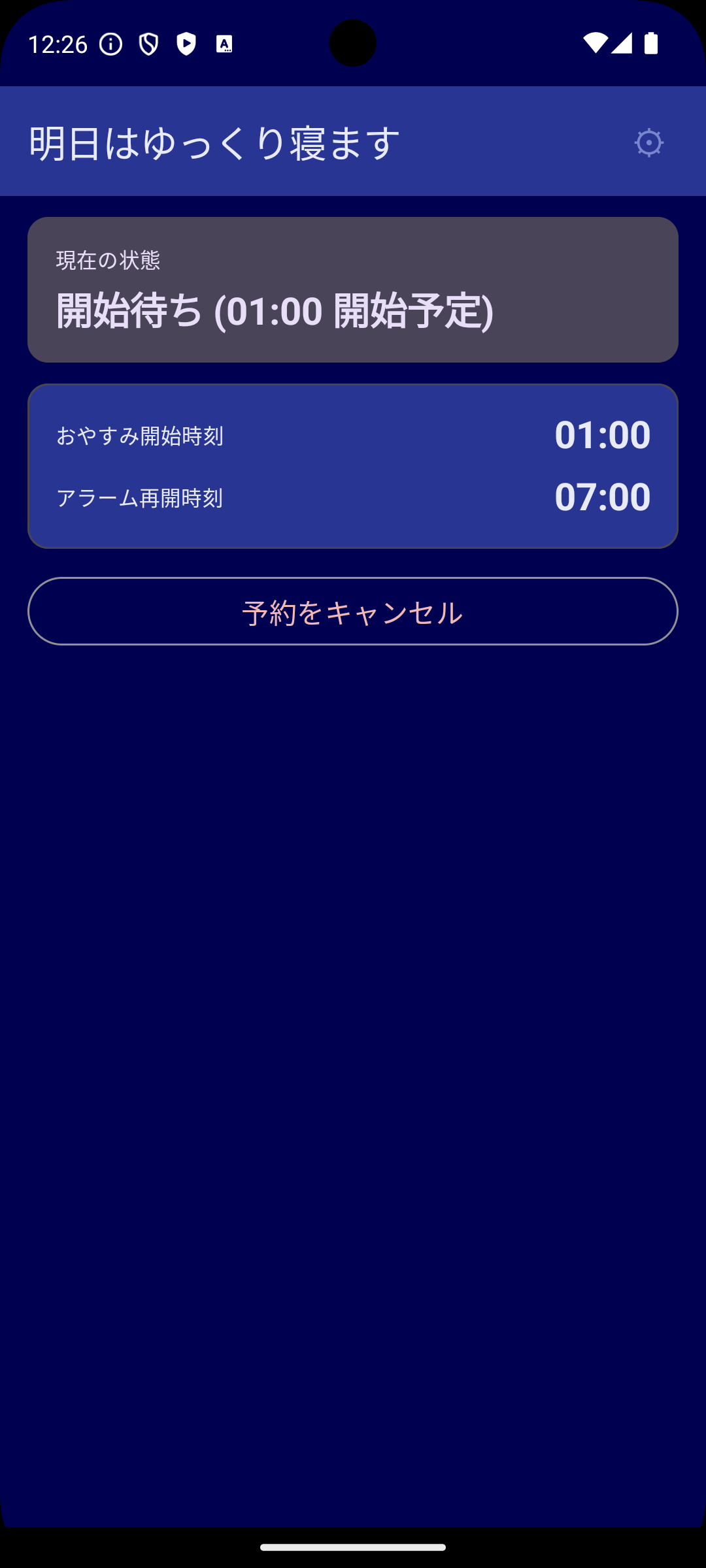
⏳The “Scheduled” state
The status changes to Scheduled (starts at HH:MM). At your bedtime, silent mode turns on and alarm volume drops to 0 automatically. Sleep peacefully until your wake-up time.
- Changed your mind? Tap Cancel schedule any time to drop the reservation.
Settings (language, theme, help)
Tap the ⚙ icon in the top right to open Settings. Language, theme, and help are all in one place.

⚙Settings screen
Three rows: Language / Theme / Help. Tap each one to open a dialog (or full screen for Help). The Close button in the top right takes you back to the main screen.
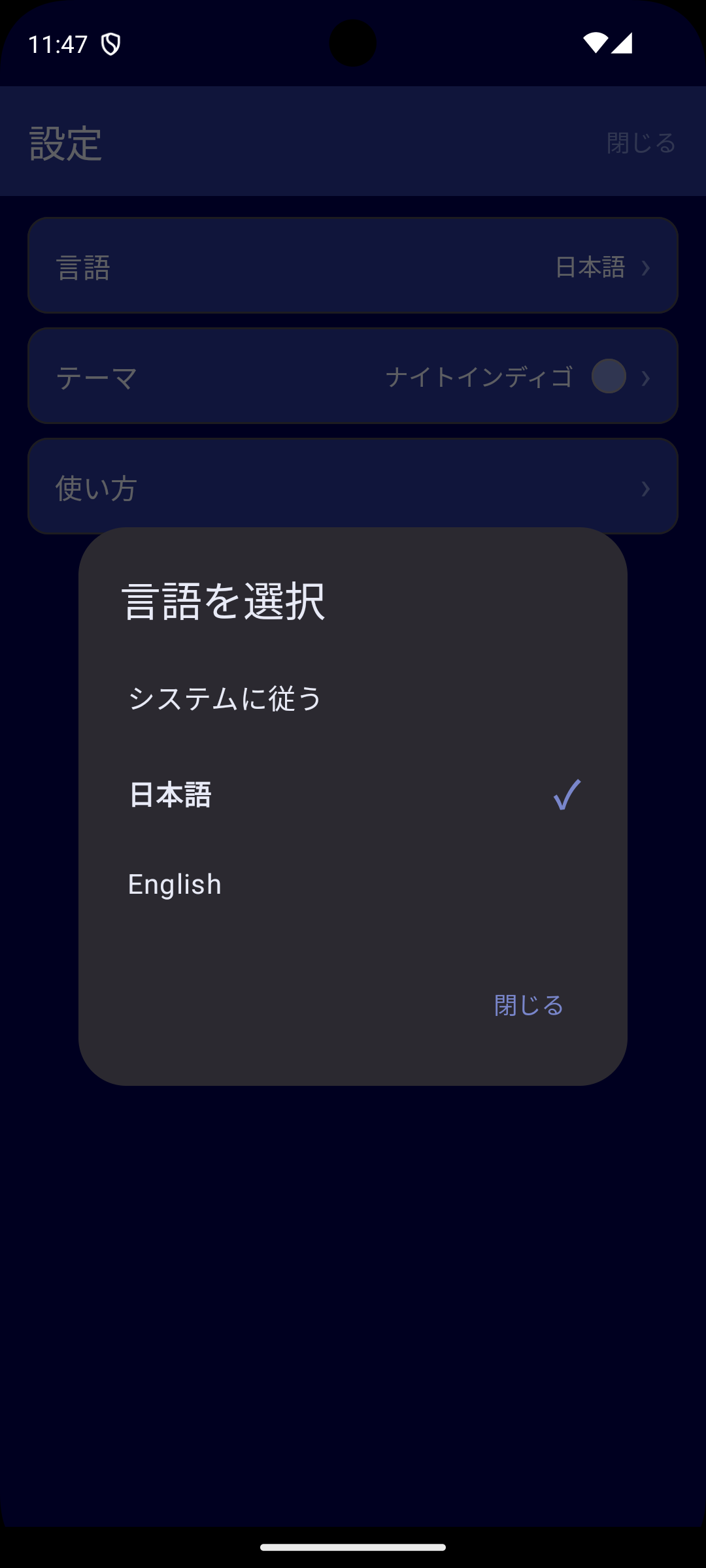
🌐Language (Japanese / English)
Tap Language to choose between System default / 日本語 / English. This is per-app, independent from the system language. “System default” follows your OS language.
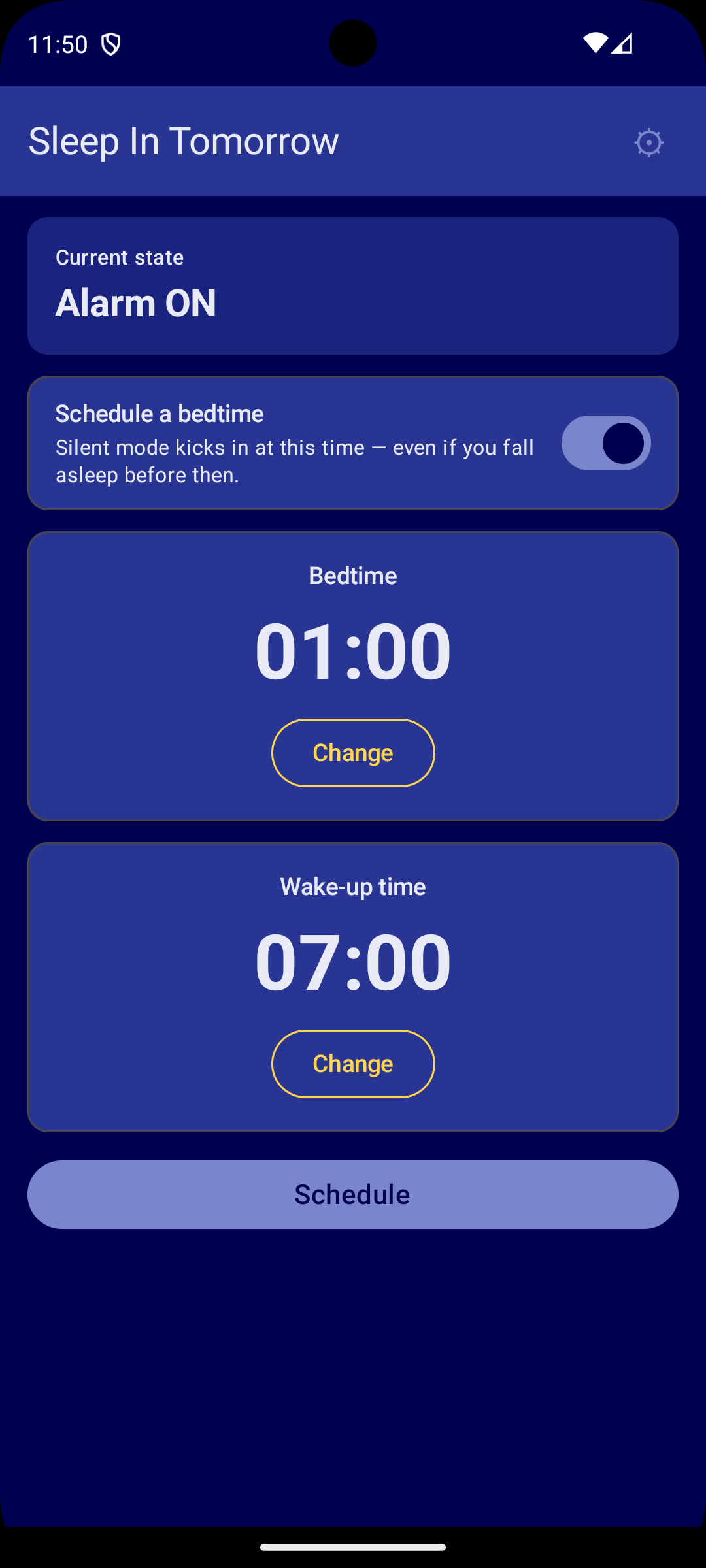
ENExample: English UI
Switching to English changes the entire app — main screen, settings, help, and notifications. The app is called Sleep In Tomorrow in English, with labels like Bedtime / Wake-up time / Start now / Schedule. Help text has been rewritten for native readers, not machine-translated.
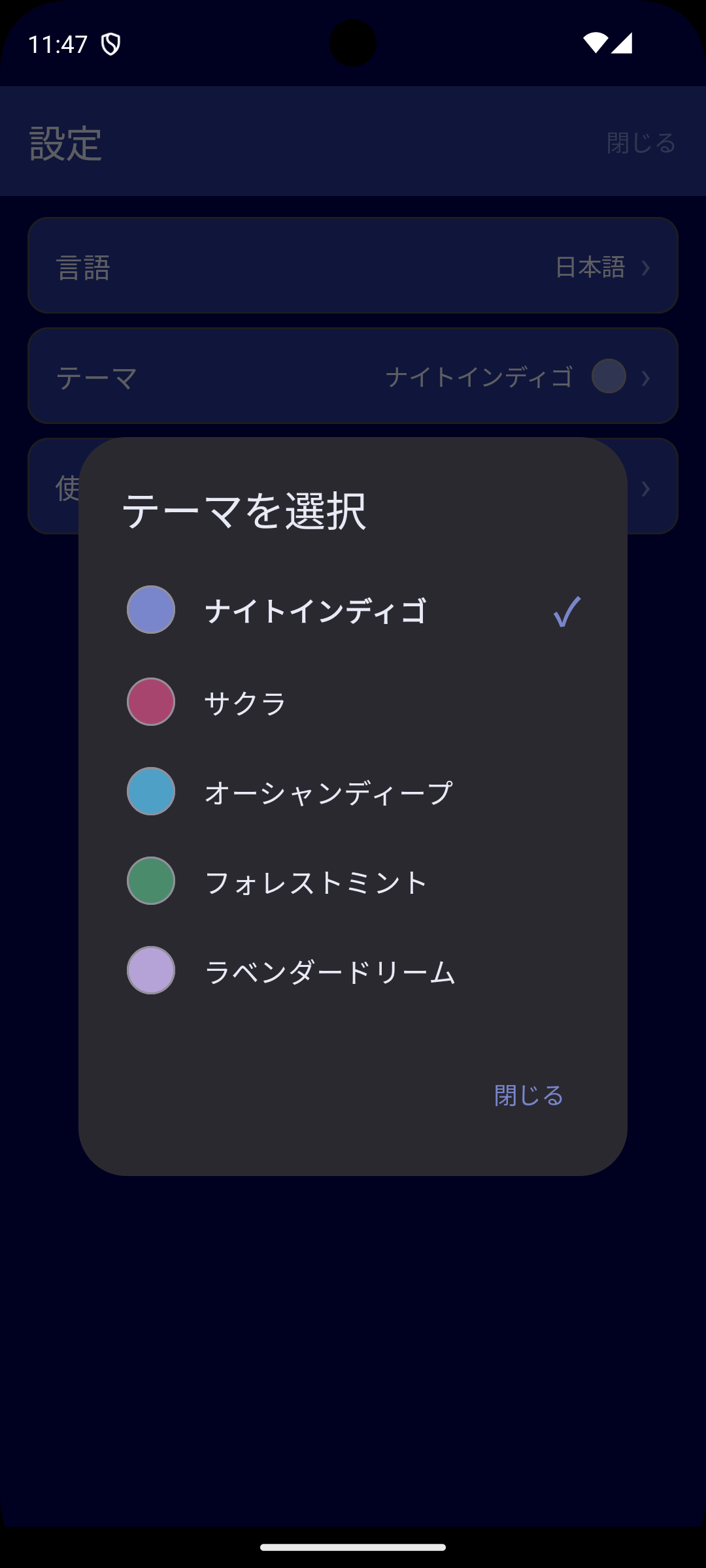
🎨Theme (5 options)
Pick a color scheme that fits your night. Your choice is saved on the device, and home screen widgets follow the same theme.
- Night Indigo (default) — quiet deep blue
- Sakura — soft cherry-blossom pink
- Ocean Deep — deep-sea blue-green
- Forest Mint — fresh forest green
- Lavender Dream — gentle purple
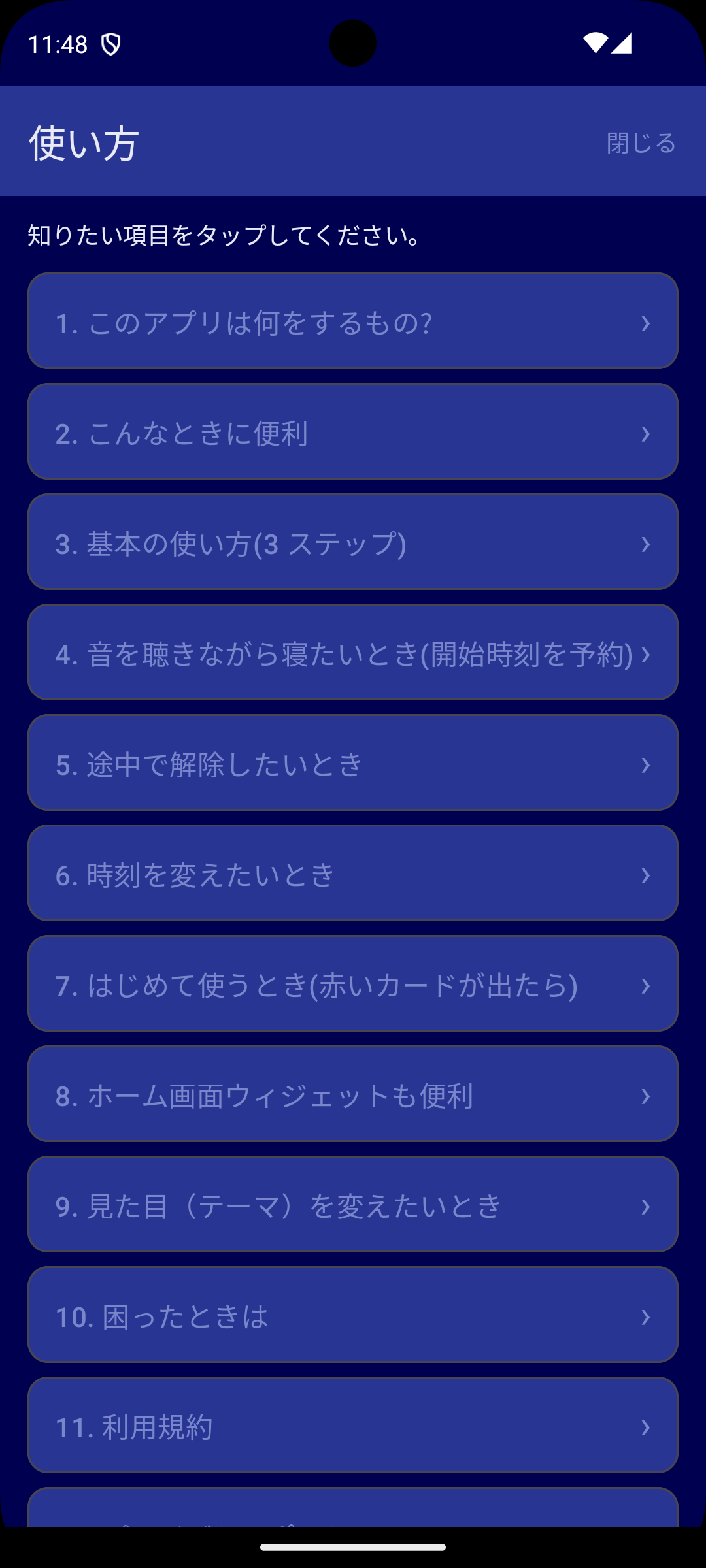
?Help
An in-app help screen covering basic usage, the schedule feature, troubleshooting, terms of service, and the privacy policy — 12 topics in total. Tap any entry to read the details.
Home screen widgets
Two widget sizes are included: 1×1 (compact) and 1×2 (wide). Tap the moon icon to toggle ON / WAIT / OFF, tap the time text to open the app. Long-press is reserved by Android for moving/removing widgets. Widget colors follow your selected theme.
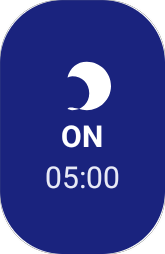
1×1Compact widget
Stacks the moon icon, the status (ON / WAIT / OFF), and the wake-up time vertically. Good for tight home screens.
- Tap the moon icon area — toggle start / cancel
- Tap the time text — open the app
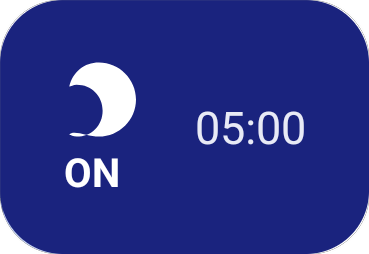
1×2Wide widget
Moon icon on the left, status and time large on the right. Easier to read the wake-up time at a glance.
- Tap the moon icon — toggle start / cancel
- Tap the time area — open the app
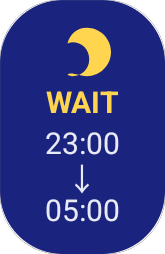
⏳WAIT state
When you schedule a bedtime, the widget shows WAIT in yellow with the bedtime and wake-up time stacked.
- 1×1: bedtime → wake-up stacked vertically
- 1×2: the same info laid out wide
Permissions
- Post notifications — to notify you when alarms are restored.
- Do Not Disturb access — to switch silent mode on and off.
- Schedule exact alarms — to wake up at the precise time you chose.
- Modify audio settings — to mute the alarm stream temporarily, then restore it (granted automatically at install time).
Privacy
The app does not collect or transmit any user data. Everything is stored locally on your device. The app does not make any internet calls. The only items kept on-device are: your wake-up time, your bedtime (when the schedule feature is on), the current state (off / scheduled / silenced), your selected theme, and the alarm volume right before muting (so it can be restored later).
For full details, see our Privacy Policy.
Requirements
- Android 10 or later
Support development (optional)
This app is developed by one person, with no ads and no in-app purchases — completely free. If you’ve enjoyed it and want to see continued updates, a “buy me a coffee” gesture is very welcome and motivating.
You choose the amount. Support is entirely optional and does not affect the app in any way.
Terms of service · Privacy policy · Commerce disclosures (JP)